Main Menu
When you start Athenaeum you are presented with a start screen which we just call the main menu. The main menu is different for different levels of accounts and the main menus are customisable.
Administrator Main Menu
The main menu is designed to make the options you use most front and centre. However there is much going on and you can dive into many things when you are ready.
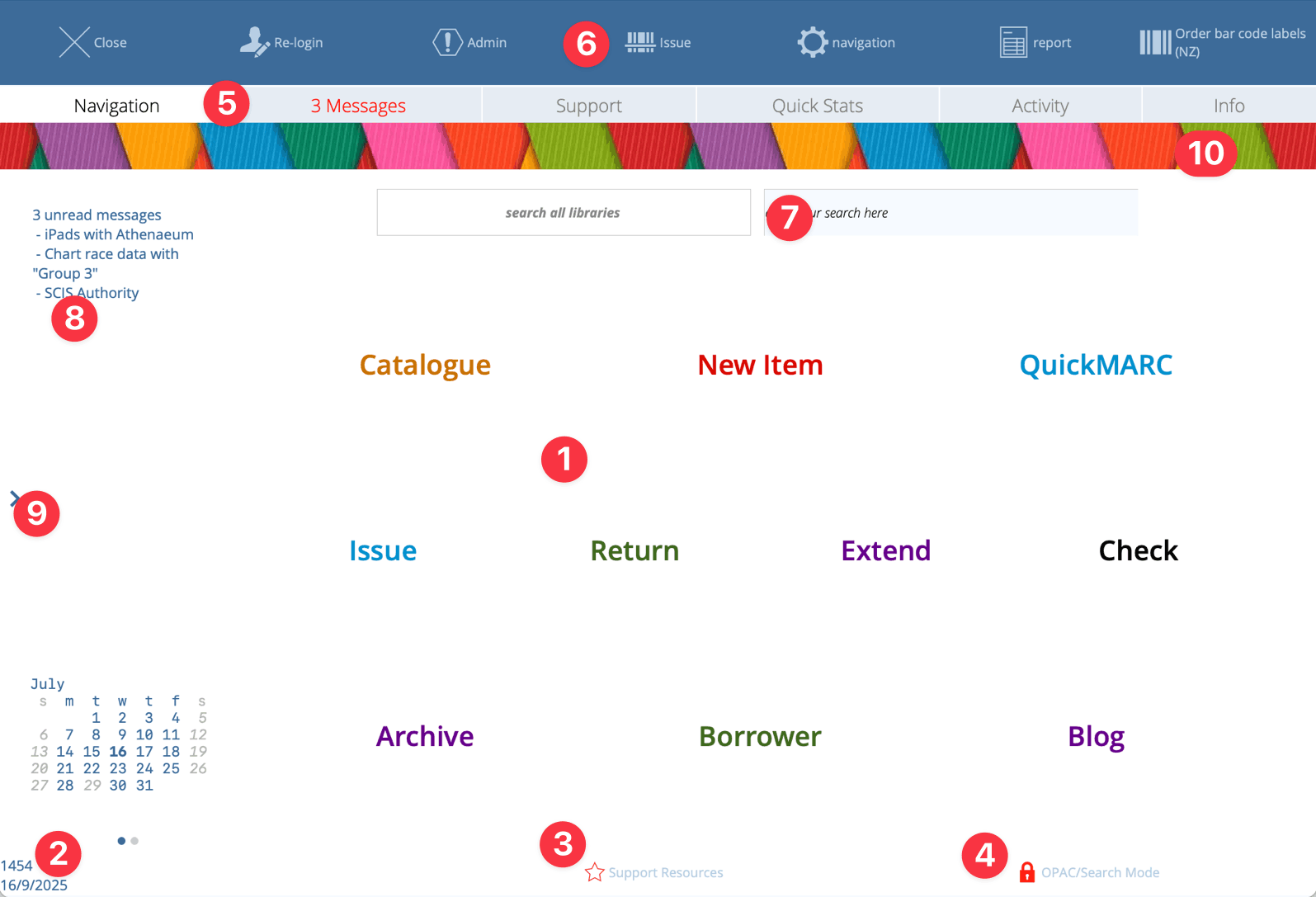
- buttons to open the different parts of Athenaeum - you can configure up to 12 buttons here
- the current "build" number of Athenaeum and the date of expiry of your support; above that is a quick calendar showing the library open dates for the current and next month - days the library is closed are shown in grey
- direct link to the searchable support resources list
- a quick lock feature that logs the session out of administrator mode and into "guest" mode (no editing allowed)
- tab bar to access messages, support options, quick stats, library activity and information about your Athenaeum
- tool bar with access to some common functions
- quick search of the catalog - enter your search term and press the enter key
- overview of unread messages
- disclosure arrow to reveal some statistics
- a cosmetic graphic strip you can add to distinguish separate copies of Athenaeum
Main Menu Tabs
Navigation
This is the default view shown in the screen shot above.
Messages
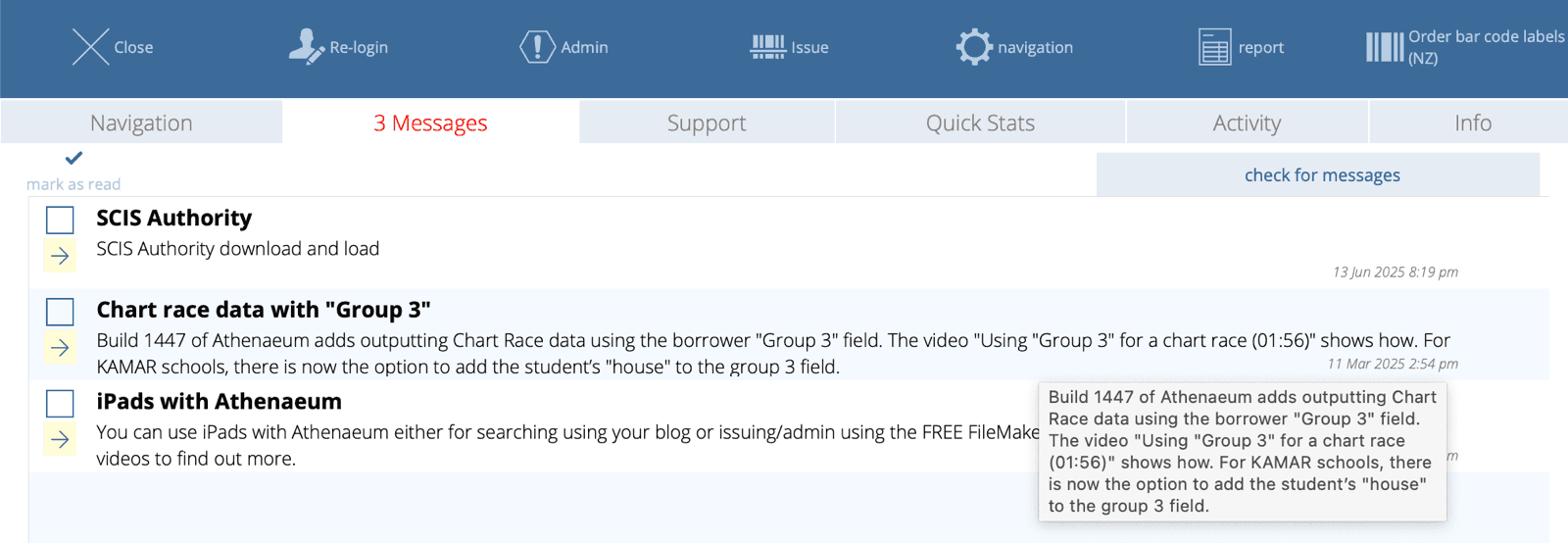
From time to time, Athenaeum or SumWare Consulting may send you messages that are listed in this tab.
-
Click the checkbox to mark the message as "read" (it will disappear from view shortly).
-
Click the arrow button to see the message in larger text.
-
Hover the cursor over the message to see a tooltip with the full message
-
Click "mark as read" to mark all messages as read
Support
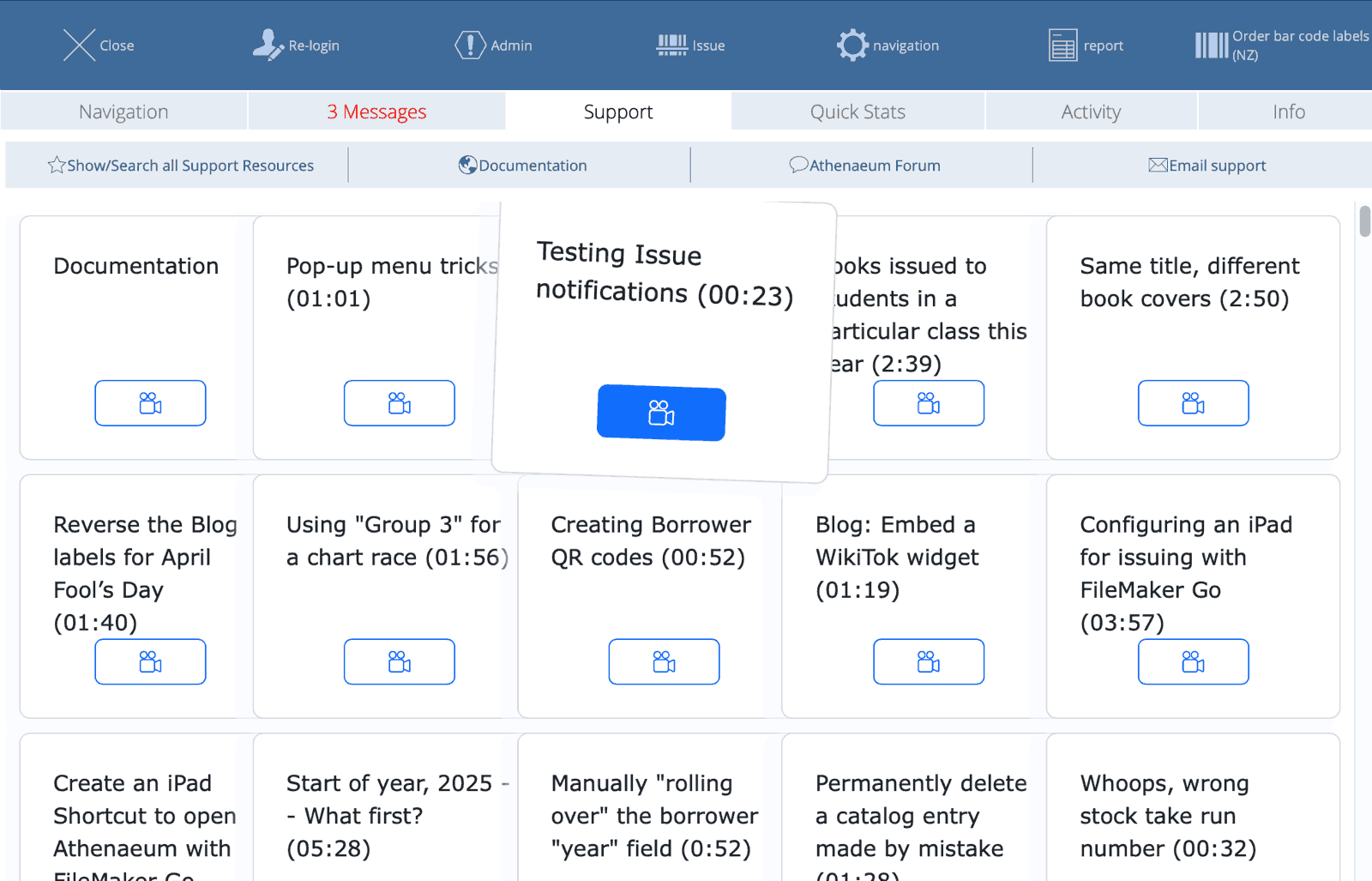
The support tab includes:
- Show/Search all Support Resources
- navigates to the support resources list where you can search support by topic, name or description and view resources
- Documentation
- opens this documentation in your web browser
- Athenaeum Forum
- opens the Athenaeum web forum in your web browser
- Email support
- a quick way to send an email directly to Athenaeum support
- Recent support resources
- a grid of links to the support resources in the order of most recent first (the link to documentation is always first)
Quick Stats
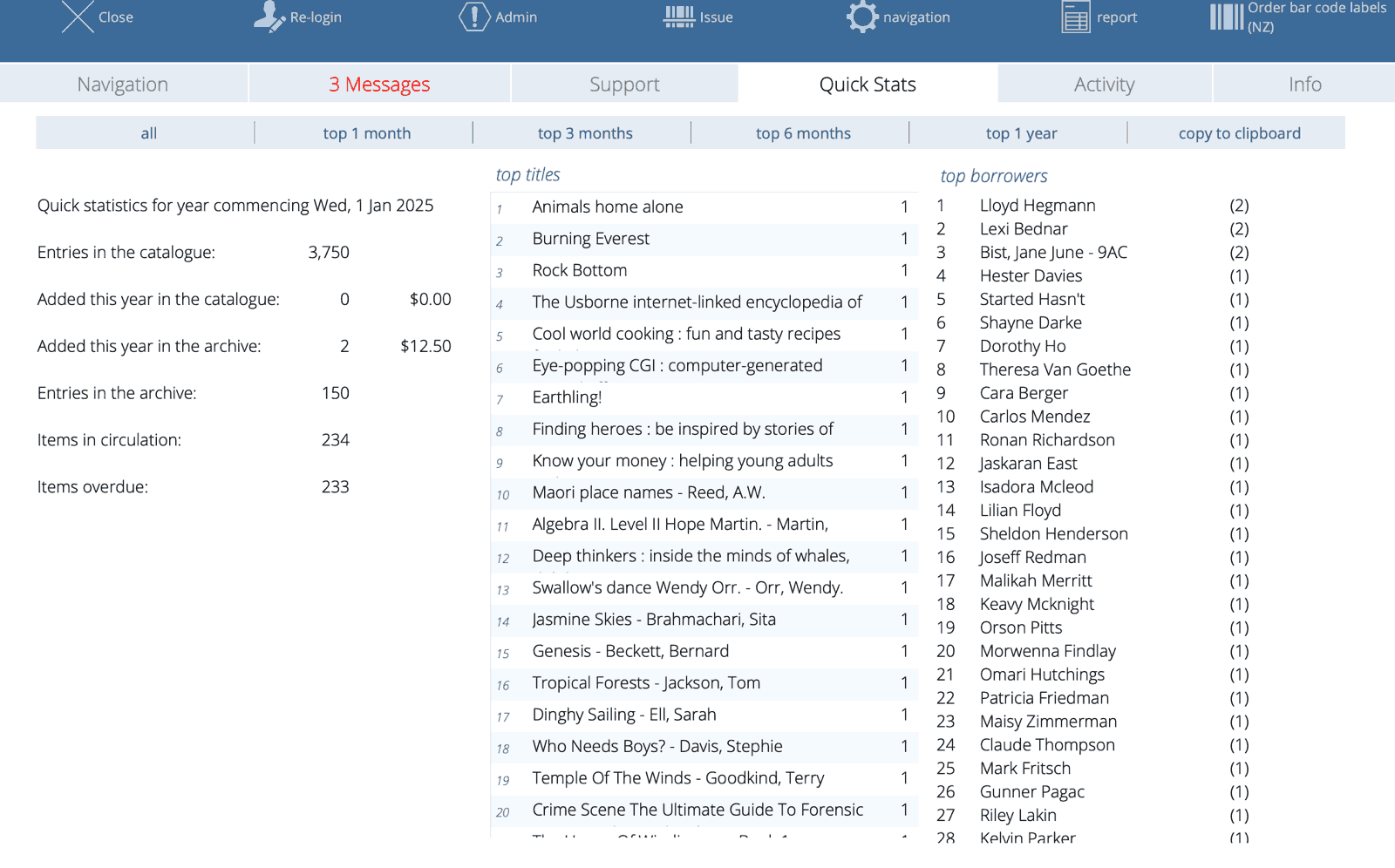
The first column shows brief statistics about your catalogue and circulation for the current year.
The buttons above (all/top 1 month/top 3 months/top 6 months/top 1 year) will trigger Athenaeum to count the top titles and borrowers for the period.
The copy to clipboard button will copy the text of the displayed quick statistics to your clipboard for pasting into a text document, spreadsheet or email, if you choose.
Activity
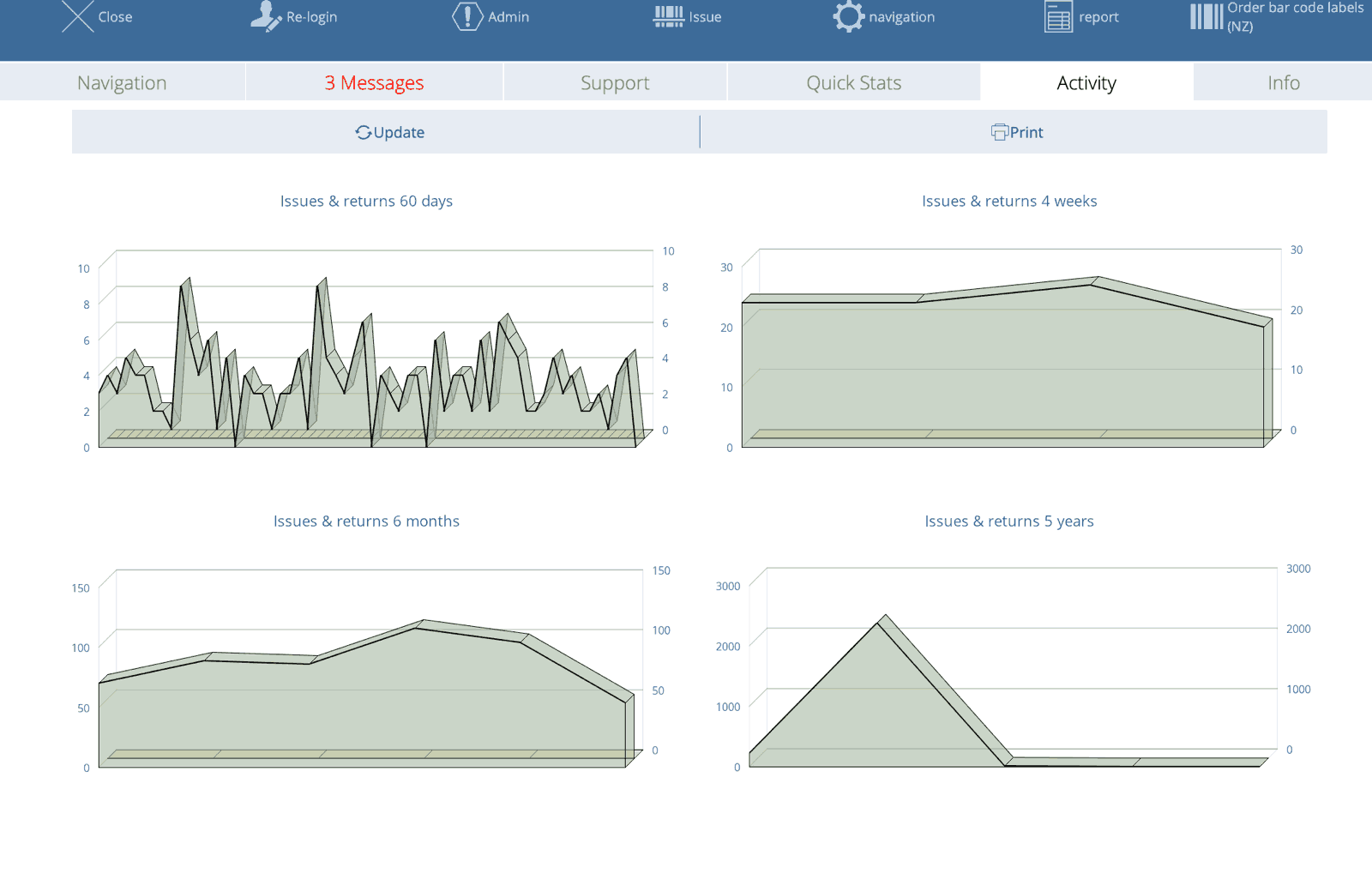
Clicking the Update button on the Activity tab will generate overview charts showing borrowing trends for the prior 60 days, 4 weeks, 6 months and the last 5 years.
Info
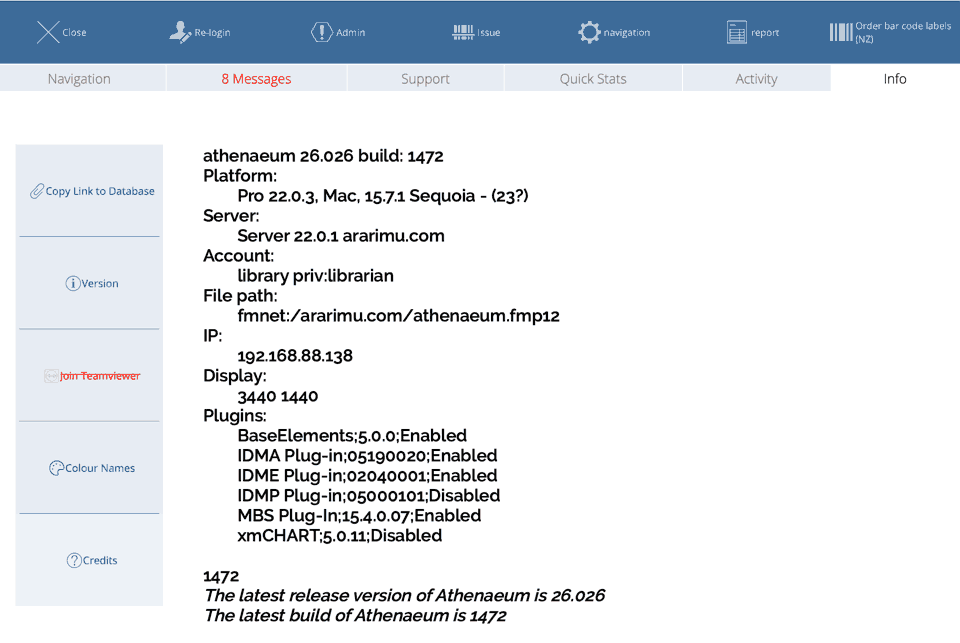
This tab shows information that can be useful to support upon request.
Customising the main menu
You may choose which functions appear on the navigation tab. Up to 12 functions can be placed and you may have fewer commonly used functions if that is what you would like.
Go to Admin and the click the Main Menu tab.
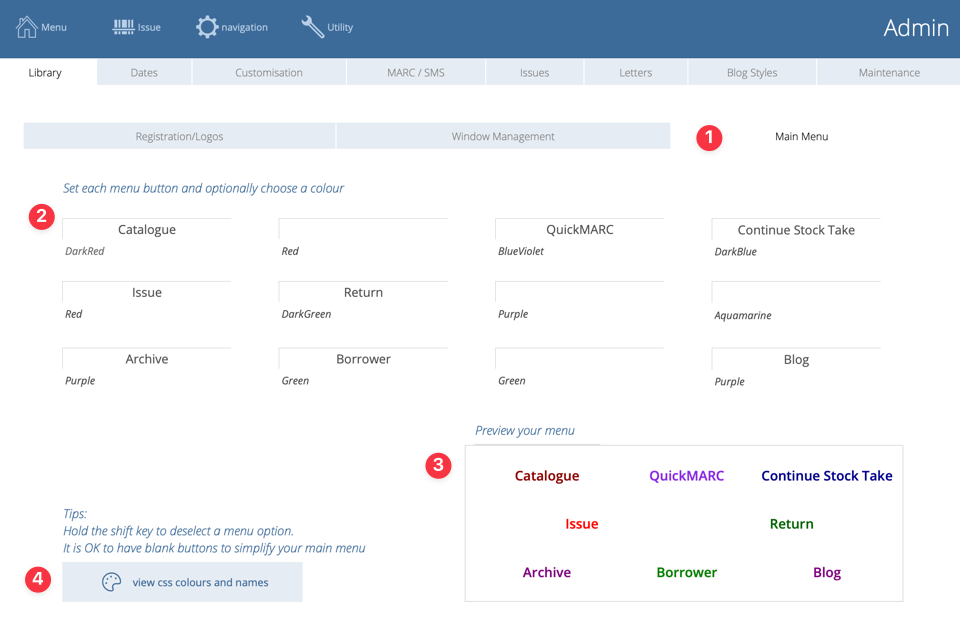
- Main Menu configure tab
- 12 button configuration "slots"
- Preview of what the main menu will look like (this is also functional)
- Open the CSS colours page to see the named colours
Button slots
There are three rows of four slots. Each slot has a function chosen from the drop down menu and a colour. The colour can be a named colour or a "hex value" colour (these are the same colours that we can use when styling our blog).
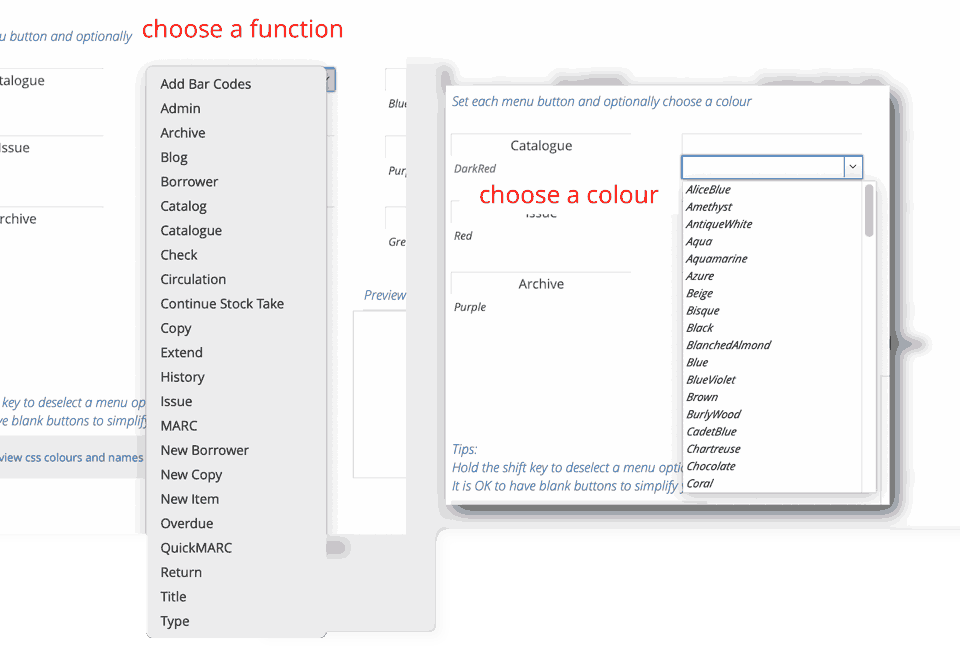
You do not need to use every slot...the buttons will simply expand to fill any available space.
If you want to remove a function, click on it, hold the shift key and select it from the pop-up menu. That will clear the value.