Styling
You have a lot of control from within Athenaeum over the appearance of the Athenaeum search web site. In fact, the colours, spacing, etc are defined within Athenaeum.
note that you do not need to know this, lean on your support agreement to get set up...once you are running, you will likely only tweak a few things.
You can control components such as:
-
the width of the site: fixed or full browser width
-
a banner that is displayed across the top, along with its positioning and size
-
text that is drawn over the banner
-
the background colour and text colour of the navigation bar
-
an optional "big message" to display between the header and the blog entries on the home page
-
the background colours of the home page and search results links and the "cards"
-
the border colour of the home page and search results links
-
the colours of the links (anchors)
-
"styling" of almost all elements on the page via a free-form css definition
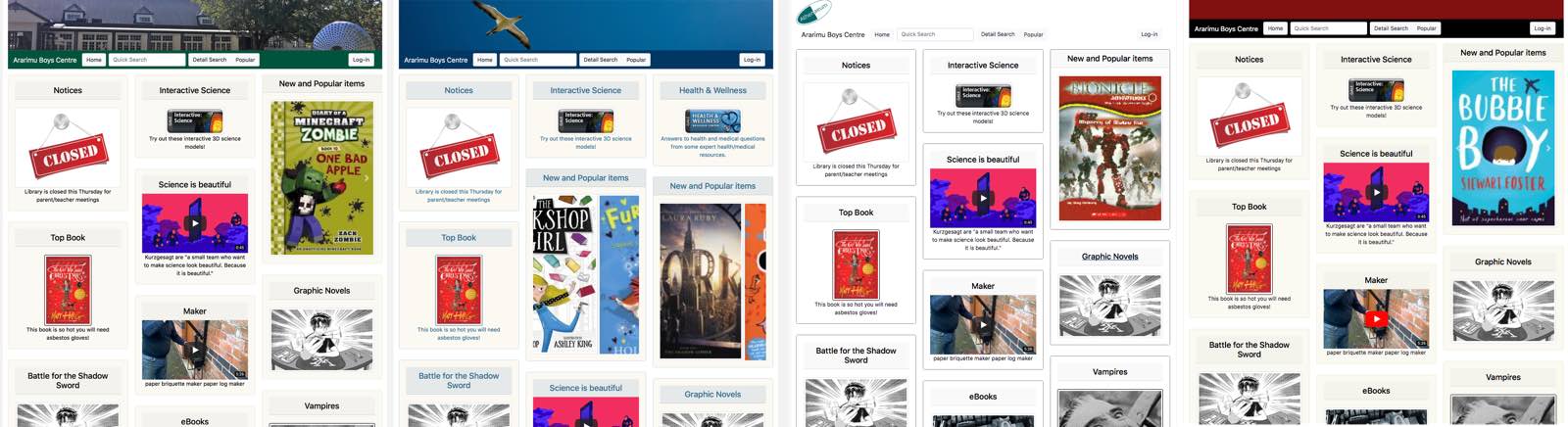
Four examples of just a few different settings with (mostly) the same content are shown here. The differences are in the banner image/colour, the colour of the navigation bar, the text colour and the background colours of each entry. differences in the data are because of the carousel(s) on the web pages, which change every 10 seconds
Notes
Athenaeum is provided with default configurations, so you don't have to do any styling. If you have a support agreement with Athenaeum Library Software, then we can provide you some direction in customising your look and feel.
Colours are generally specified in hexadecimal, e.g. #000000 is black, #FFFFFF is white and #0000FF is blue. Each pair of hexadecimal numbers is, in turn, the amount of Red, Green and Blue. You can also use RGB(X,Y,Z) format for colours.
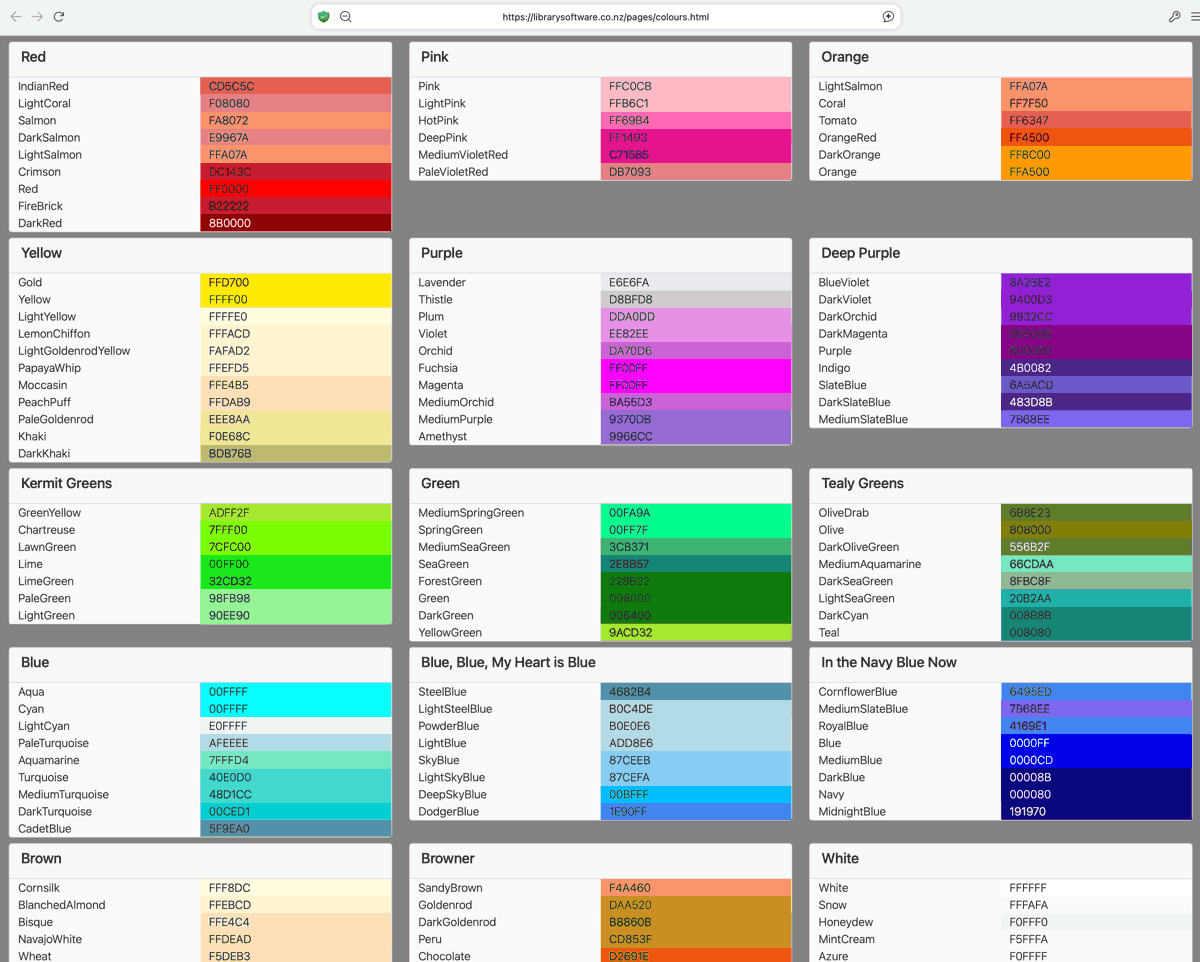
You can also choose from a selection of colour names. You can open a web page from within Athenaeum listing these colours:
https://librarysoftware.co.nz/pages/colours.html
While this sounds a bit of work, there are lots of web sites that will allow you to choose from co-ordinated palettes of colours that make specifying colours much easier.
For example:
Or use on line colour wheels for finding sets of corresponding colours, for example:
Open Styles page
To customise your blog look and feel, click the {…}Styles button at the top of the blog page:
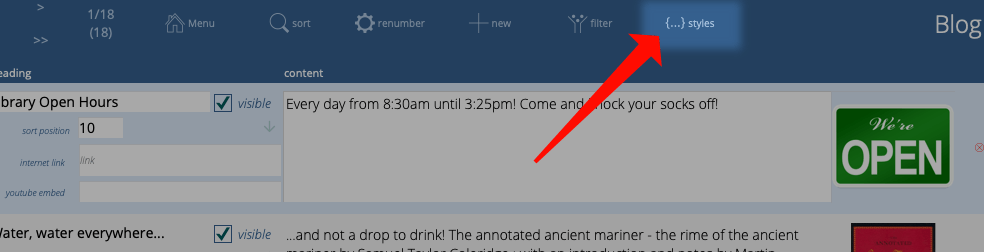
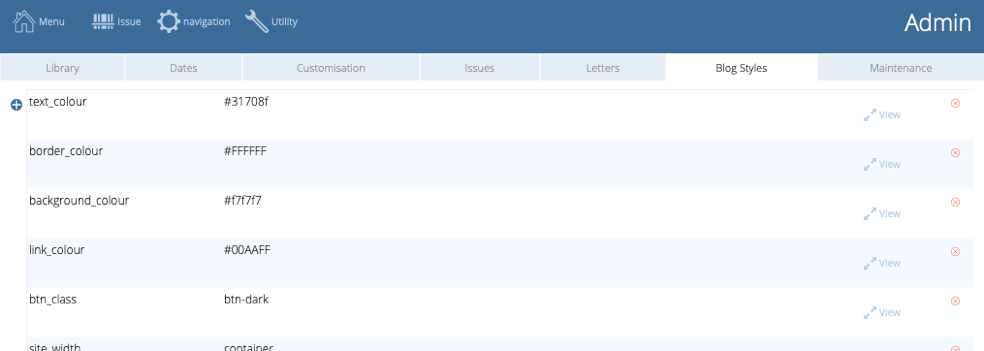
You can also simply click the Blog Styles tab in admin.
Available settings
Each row specifies one or more settings, which you choose from the pop-up menu on the left:
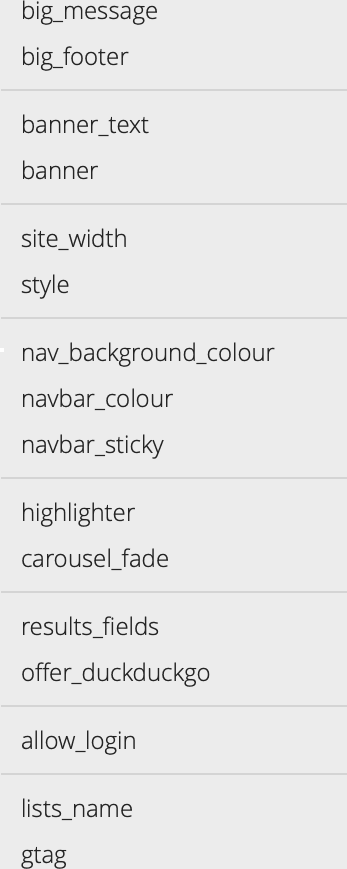
We provide you with starter settings. However, if you have a geek handy, you can supply her/him with this list. the name of each style option must appear exactly as shown here
| name | description | options |
|---|---|---|
| site_width | the width of the web page in the web browser window | container (fixed width) or container-fluid (full window width) |
| banner | style information (css) describing the content of the banner - use valid css to describe the properties (see below for an example banner definition) | css |
| banner_text | heading 1 text shown in front of the banner graphic - the appearance of this can be controlled in your style elements | style sheet |
| nav_background_colour | the colour of the background behind the navigation links - note: DEPRECATED this is kept for compatibility reasons with older blog installations and is better controlled in the raw styles definition | hex number, rgb colour or css colour name |
| navbar_colour | colour of text in the navigation bar (should contrast with nav_background_colour) | light or dark |
| style | raw css allowing you to customise the look, size and positioning of virtually any component on the web page (including the "big_message") - typically you would have your web designer assist you with this | css |
| navbar_sticky | will keep the navbar at the top of long blog pages when scrolled down | true or false |
| carousel_fade | carousels will fade in and out instead of scrolling | true or false |
| results_fields | choose which fields are included in the search results cards | (checkbox selection) |
| offer_duckduckgo | if no search results, you can include a search box to use the private DuckDuckGo web search engine to search the internet | true or false |
| allow_login | allow users to log in to the blog and see their history, current issues and reserves. IF they have sufficient privilege, they can also issue and return | true or false |
| lists_name | the name of the drop down menu for blog entries that are configured to show in the list | text |
| big_message | message text that is inserted between the navigation bar and the blog columns on the web site home page - use this for occasional announcements such as "library closed" or "book fair" (and you can style this with CSS using the .big_message h1 {} selector | text |
| big_footer | message text inserted between the bottom of the blog columns on the home page and the copyright footer - the appearance of this can be controlled in your style elements | style sheet |
| header_link | reserved entry for certain html headers | contact Athenaeum support |
Your styling choices might depend upon the type of devices your patrons typically use. The web site will adapt depending upon orientation and window width and the blog entries will re-order depending upon number of columns visible and the cumulative heights of each "card", so please don't expect to set the order of blog entries absolutely - ordering is just a guide. note earlier versions of the blog styles allowed you to specify the number of columns - this has been removed as the blog will adjust itself to fit the device window
Favourite snippets
The appearance of the web pages can be changed significantly with a few changes to the above elements.
And you can use those changes to better engage your library patrons. To facilitate this, you can store alternate values for the available settings in the "my styles" table. Access this by clicking the heart icon on the left of the styles table.

This takes you to the my styles page where you can store various snippets. For example, you might keep three separate banners stored here and swap them in for various occasions.
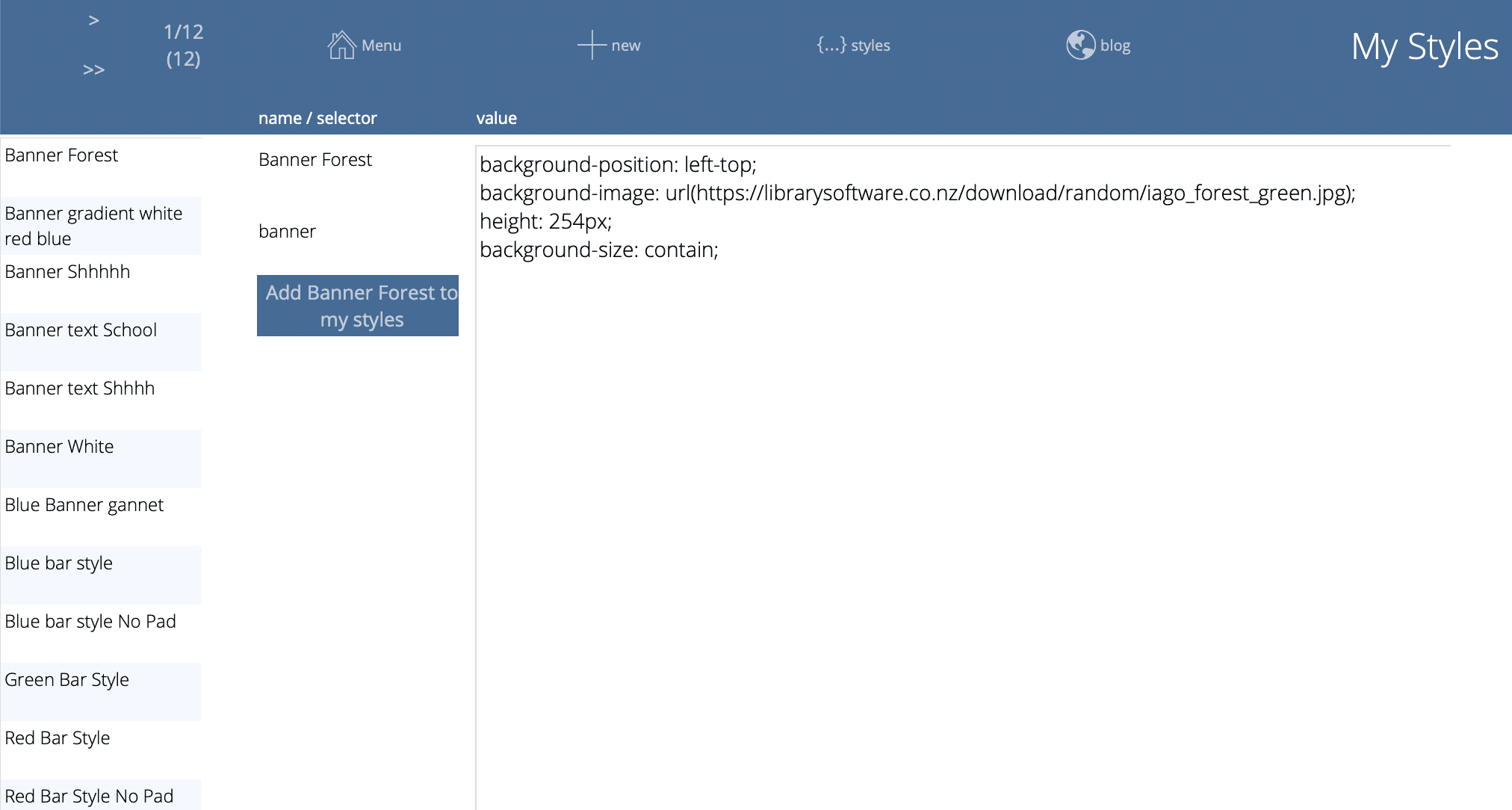
On the left is a scrolling list of all of the styles available.
Each saved style has:
-
a name that you define - e.g. Blue Banner or Green Banner, etc.
-
a "selector" type potentially defining the style component that will be swapped out
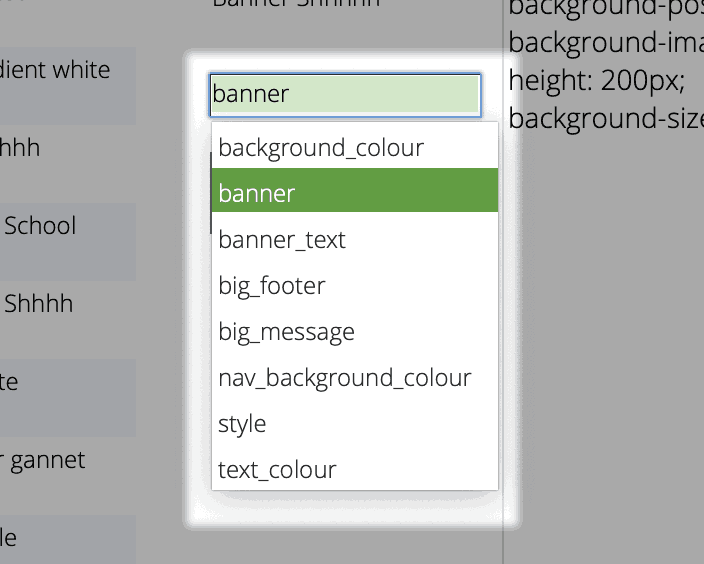
- the code or text that is saved and can be swapped in to your blog Styles
The Add "xxxx" to blog styles button will copy the content of your currently selected style, then find the matching component on the blog styles page and replace it.
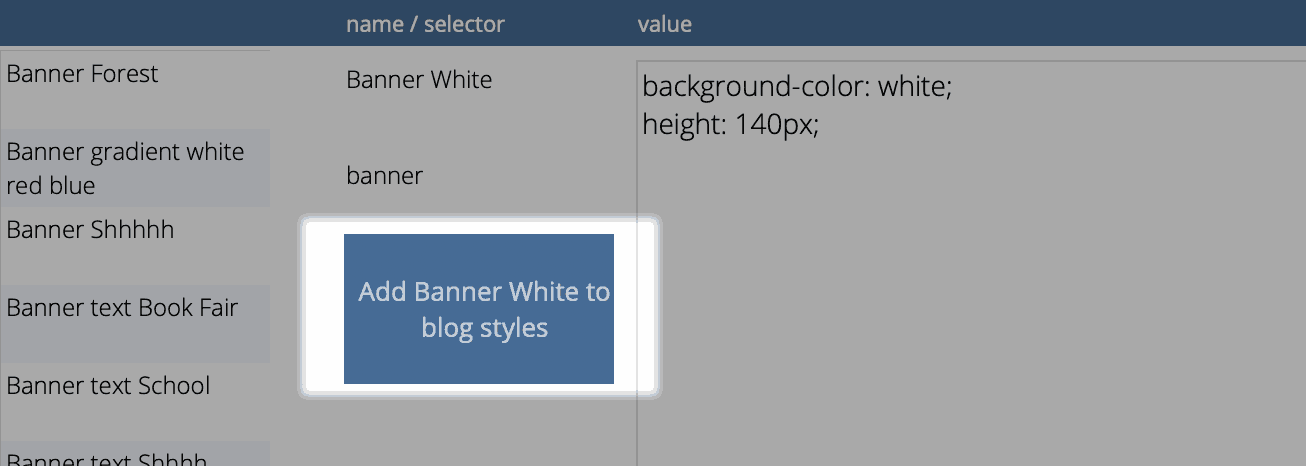
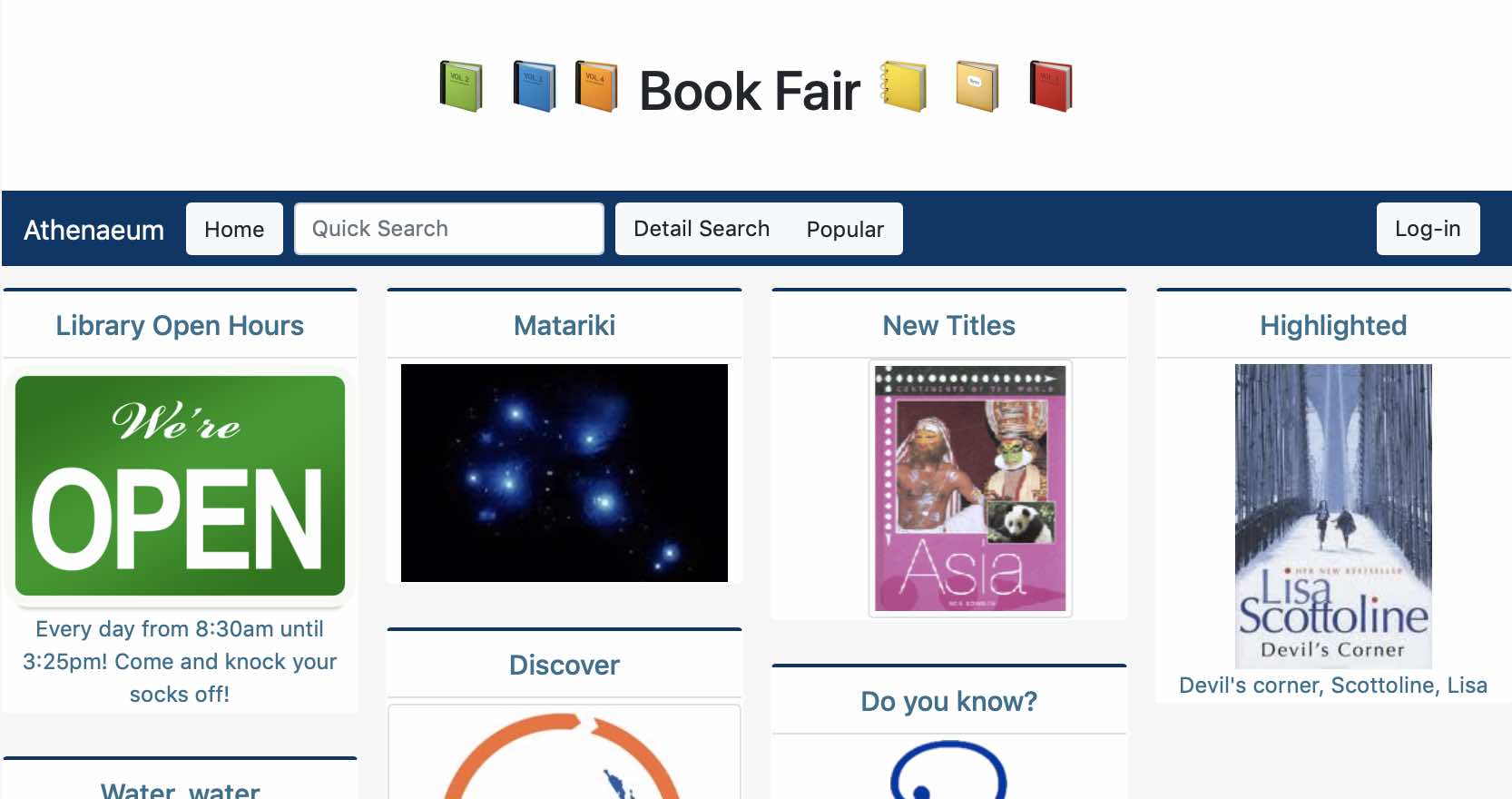
An example usage might be that you have a standard home page with the school banner across the top. However, for the week of your library book fair, you might wish to swap in a suitable banner.
In this example, instead of a school banner, pictured is the Athenaeum Takapu (gannet):
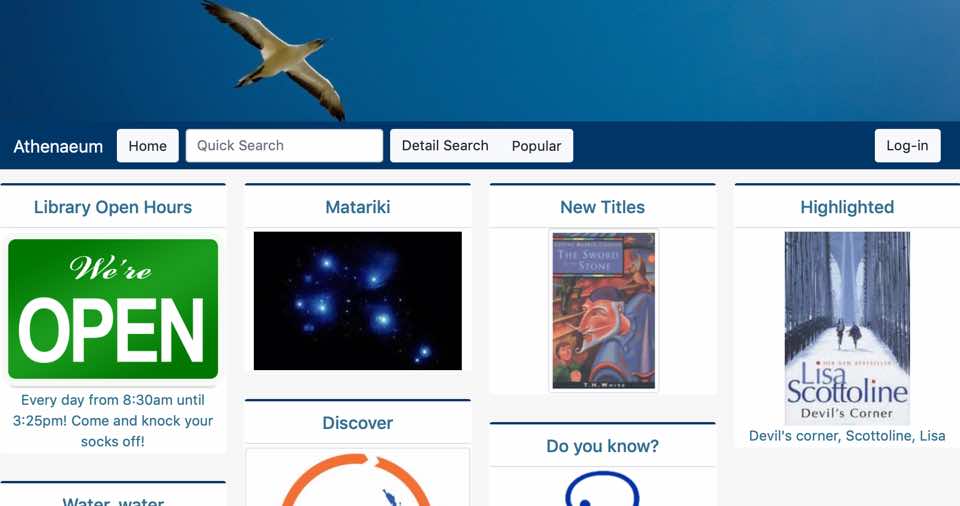
To swap this out temporarily, one can - in a few clicks - set the banner background to white and add the words "Book Fair" (with some emoji). When the page is reloaded, it is immediately updated:
Example Banner code
background-position: center;
height: 150px;
background-image: url(https://librarysoftware.co.nz/f/gannet_rob-1170-150.jpg);
background-size: cover;
background-repeat: no-repeat;